How to set up Google Ads for Shopify

Setting up Google Ads for Shopify now goes through a single door: the Google & YouTube app, installed from your store admin. It connects your Google account, Merchant Center and Google Ads, sends your catalog to Google and places the tags that count sales.
The connection takes half an hour. What deserves your attention is what comes next: picking the right primary conversion, and hunting down the old tag that counts every order a second time.
I often take over stores where Google Ads reports a ROAS of 8 while the margin doesn't follow at all. Quite often, each order is counted twice, and Smart Bidding bids on phantom sales. Here is how to connect cleanly, then check that the number in Google Ads matches your till.
How to connect Google Ads to Shopify
You connect Google Ads to Shopify with the Google & YouTube app, which is free and maintained by Google. In your Shopify admin, type "Google and YouTube" in the search bar, install the app, then connect your Google account. It's the method Google Ads' official help presents as the easiest.
Setup then runs in five steps. In the section dedicated to Google Ads conversion measurement, you link your Google Ads account (or skip the link and do it later). The app then lists your store's events and offers, for each one, to create a conversion action in the account, to reuse an existing one, or not to measure it.
Next come confirming your Google tags, then checking the new actions. Google warns that if you don't complete these steps, you won't be able to access the app's settings. So don't close the tab halfway through, telling yourself you'll finish tomorrow.
On the catalog side, the app syncs your products with Merchant Center: your store domain, the product listings available on your online store, shipping and taxes.
If you run another feed, remember this line from Shopify's help page on the Google channel requirements: an existing feed is overwritten, to avoid conflicts. How Merchant Center works end to end is covered in our Merchant Center guide.
Google & YouTube app requirements on Shopify
Installation rarely fails for a technical reason. It gets stuck because the store doesn't meet one of the Google channel's requirements, which people discover along the way instead of checking beforehand. Here are the ones Shopify lists, to tick off before you start:
- a published online store, with no password page;
- a valid payment provider in your admin;
- a refund policy and terms of service, reachable from the footer menu;
- at least one visible contact method: email, phone, mailing address or contact form;
- shipping to a supported country, in that country's currency.
To sync products, you also need a Merchant Center account associated with a verified domain that no other account uses. A multi-client account can't be used to sync products with the app: a trap for agencies, used to grouping their stores under a single account.
The Google Ads account, on the other hand, isn't a requirement: you can connect the catalog first and the advertising afterwards.
Shopify conversion tracking: which action to keep as primary
When you link Google Ads, the app suggests three conversion actions: purchase, add to cart and checkout started. According to Google's help, they are the suggested default and set as the account default. For a store, only one should drive bidding: the purchase.
The distinction matters more than it seems. Google defines it this way on its page about primary and secondary actions:
"Primary actions: These are conversion actions that are reported in the "Conversions" column in your reports and used for bidding as long as the standard goal they are part of is used for bidding."
Secondary actions are for observation only: they feed the "All conversions" column, not bidding.
Leave add to cart as primary and Smart Bidding treats it as a sale. It learns to find people who fill a cart, who are much easier to find than people who pay. Your cost per conversion drops, your reported ROAS climbs, and your revenue doesn't move. It's the phantom-sales scenario, in a perfectly legal version.
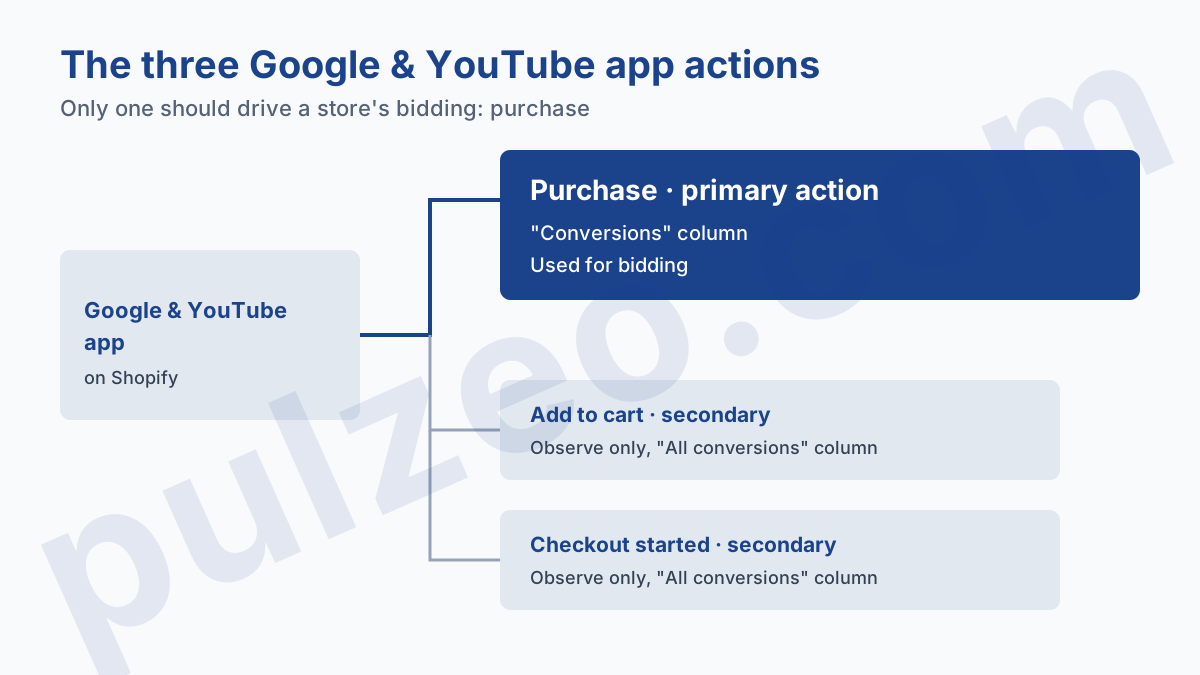
My default setting: purchase as primary, the other two as secondary. They stay useful for observation, because add to cart collapsing overnight signals a broken product page long before sales do. You set this in Google Ads, in your conversion goals, under "Conversion action optimization".
A word of caution if your campaigns are already running: changing the primary action amounts to changing the goal, and Google reminds you, on that same page, that this kind of adjustment resets the learning period of smart bidding, which it puts at 7 to 14 days. Do it once, cleanly, rather than fumbling around for a month.
Finally, check how the purchase action counts. For a store, you want to count every order, so "Every", because the same customer can buy twice after one click. A purchase action set to "One" per click undercounts your best customers. The full logic of an action's settings is in the guide to misconfigured conversions.
Duplicate conversions on Shopify: where they come from
Google admits it in black and white on its page about duplicated events: a single action can be counted more than once if you had already set up conversion tracking before installing the Google & YouTube app. Any store that tracked its sales before the app is affected. Two sources keep coming back.
The old tag pasted into the theme
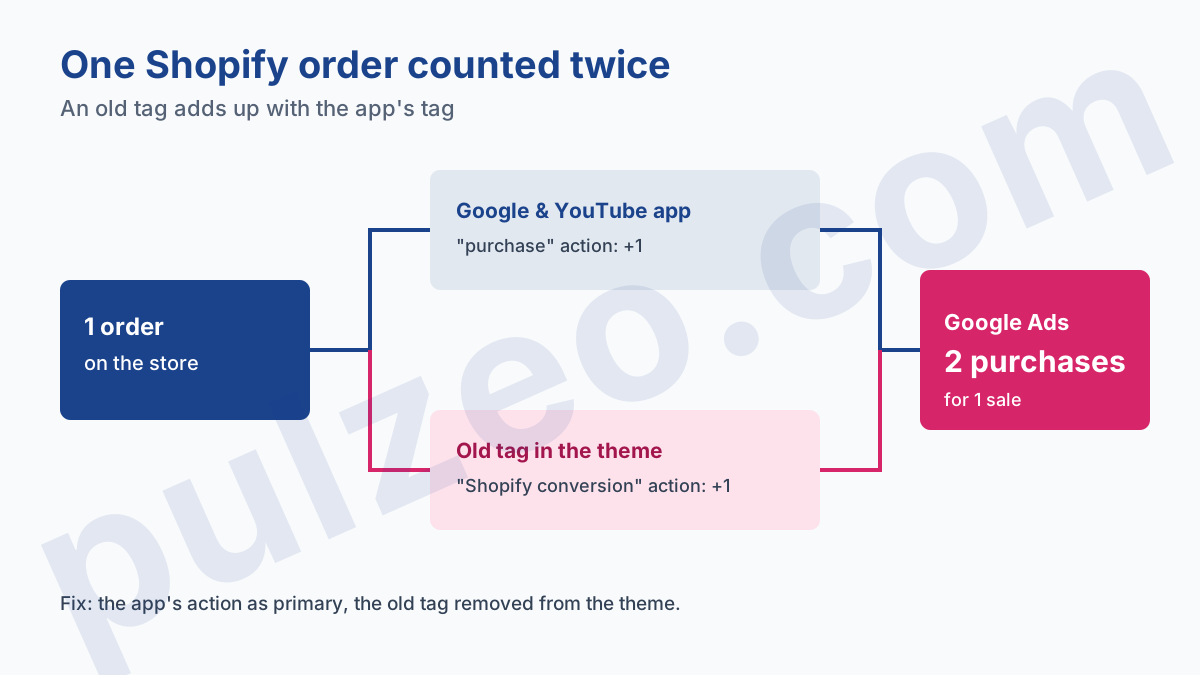
Before the app, people pasted the Google Ads tag by hand into theme.liquid, or used a third-party tracking app. That tag didn't disappear when you installed the Google & YouTube app. Both now count in parallel, each with its own conversion action in Google Ads, often under different names: "purchase" on one side, an old "Shopify conversion" on the other.
The fix is the one Google gives: set the app's conversion as primary and remove the old tags. In Google Ads, switch the old action to secondary while you confirm the new one counts properly, then remove the code from the theme.
Additional scripts on the Thank you page
The other historical spot was the "Additional scripts" field in checkout settings, which ran on the Thank you page. Shopify changed that page. According to Shopify's help, the Thank you and Order status pages had to be upgraded by August 26, 2026 at the latest, and stores that hadn't done it were upgraded automatically.
The new pages don't support those scripts. A purchase tag that lived there no longer fires, and nothing warns you. The symptom is the opposite of a duplicate: the old action dropped to zero, by the end of the summer at the latest, and if it was your primary conversion, your campaigns have been bidding blind ever since.
Before deleting anything, note Google's warning: disable only the events that are truly duplicated. Turning off a conversion that wasn't one costs tracking accuracy, and that is harder to spot than a duplicate.
Google Tag Manager on Shopify: should you still use it?
For tracking Google Ads sales, no: Shopify itself recommends replacing the Google Tag Manager script on the Thank you page with the Google & YouTube app. Its help page on that replacement gives the reason: the app is maintained by Google and stays up to date without any work on your side.
The other route exists, a custom pixel that loads Google Tag Manager on Shopify through customer events. Shopify reserves it for those who already have it in place, and warns that Google doesn't recommend it and provides no technical support for it.
A detail that weighs heavily day to day: Shopify notes, in the steps for this option, that Tag Assistant, Google's tool for checking a tag, isn't compatible with custom pixels.
My view is clear-cut: a store that only needs Google Ads and Google Analytics has no reason to go through Tag Manager for the purchase. Keep Tag Manager for what the app can't do, a third-party tool or a custom event, and let the app carry the sale. If you're new to the tool, our article on Google Tag Manager explains what it's for, and where it becomes essential.
How to check that Google Ads is receiving your Shopify sales
The only proof that counts is a real order. Place one on a small product, from a browser where you aren't logged into the admin, then refund it. The next day, look for it in Google Ads, in the conversions summary. A test order that shows up nowhere teaches you more than a week of tweaking.
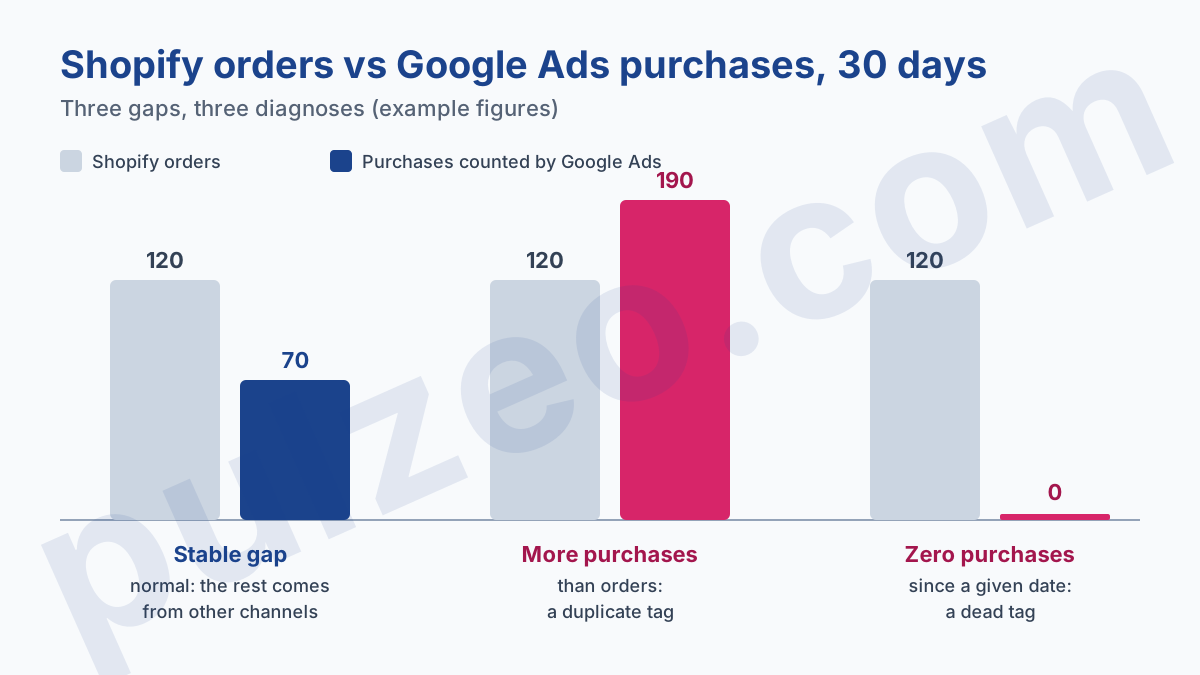
Then compare, over thirty days, the purchases counted by Google Ads with Shopify's orders. Google Ads only counts orders that follow an interaction with an ad, so it normally shows fewer than Shopify. Compare over thirty days rather than day by day, because Google Ads ties a conversion to the date of the click, not the date of the order. Three possible readings:
- fewer purchases than orders, in a stable proportion: normal, the rest comes from organic search, email or direct;
- more purchases than orders: most often, a second tag is counting the same sales, look for the duplicate;
- zero purchases since a specific date: a tag is dead, often since the Thank you page upgrade.
This check is easy to do once and easy to forget afterwards, even though it's precisely a Shopify update, made without you, that breaks tracking. Pulzeo reviews your conversion actions continuously: a purchase action that hasn't recorded anything in thirty days, two active actions under the same name, or a purchase counted only once per click all show up in its tracking diagnostic, with the fix to apply.
Enhanced conversions on Shopify: should you turn them on?
Yes, in most cases. Enhanced conversions supplement the purchase tag by sending hashed first-party data to Google, which, according to Google, measures conversions more accurately. On Shopify, the app turns them on without a line of code.
Google's help gives the path: when you first link your Google Ads account, or later in the app's "Settings" tab, under "Google Ads settings", option "Enhanced conversions". You then need to agree to the customer data terms. Read them, and check that your privacy policy mentions this sharing with Google.
After connecting: launch your first campaign from Google Ads
Once the catalog is synced and each purchase counted only once, the store is ready for advertising. Shopify's help says you can create a Performance Max campaign from Merchant Center, reached through the Google & YouTube channel. Smart Shopping campaigns can no longer be created.
I still advise against starting there. A store with no sales history gives Performance Max little to learn from, and the Google Ads interface offers far more control. The order I recommend, campaign by campaign, is in the article on the first ecommerce campaign to launch.
What I watch next is the product-by-product detail, because a campaign total always hides three or four items that spend without selling. Pulzeo shows that detail on Shopping campaigns as well as Performance Max, and names the products that use up budget without ever converting.
A well-connected Shopify setup is invisible: it simply shows the same number of sales as your till, give or take a few orders.
Common questions
Do you need a Google Ads account to install the Google & YouTube app on Shopify?
No. Shopify asks for a Google account and, to sync products, a Merchant Center account associated with a verified domain. The Google Ads account is linked during setup, or later: Google's help even includes an option to skip that link and only set up measurement.
Why does Google Ads count more purchases than Shopify received orders?
Almost always because two tags count the same order: an old tag placed in the theme or in additional scripts, and the one from the Google & YouTube app. Google says so itself: an action can be counted more than once if tracking was set up before the app was installed. Keep the app's action as primary and remove the old one.
Do additional scripts on the Shopify Thank you page still work?
No. Shopify set August 26, 2026 as the deadline to upgrade the Thank you and Order status pages, and automatically upgraded the stores that hadn't done it. Tracking scripts in additional scripts aren't supported on those pages: a purchase tag that lived there no longer fires.
Can you create a Performance Max campaign from Shopify?
Yes, according to Shopify's help, through Merchant Center, which you reach from the Google & YouTube channel in your admin. Smart Shopping campaigns can no longer be created. For fine-tuning the campaign, the Google Ads interface remains the best place.