What is Google Tag Manager and what is it used for

Google Tag Manager is a free Google tool for installing and managing a website's tracking tags (Google Ads, Google Analytics, Meta, Hotjar…) from one interface, without editing the site's code every time. You add a small piece of code once, the container. From then on, each tag is added, changed or switched off in Tag Manager, and goes live when you publish.
What is it used for, in practice? Measuring what matters to your campaigns. A form submitted, a click on the phone number, an order completed: these are the events Google Ads needs to receive to know which ads pay off, and Tag Manager is what passes them on.
I often compare it to a house's breaker panel. The wiring inside the walls is done once and for all, then you plug and unplug appliances at the panel, without calling the electrician back. Here is how it works, what it brings to a Google Ads account, and the pitfalls I find in almost every container I take over.
How does Google Tag Manager work?
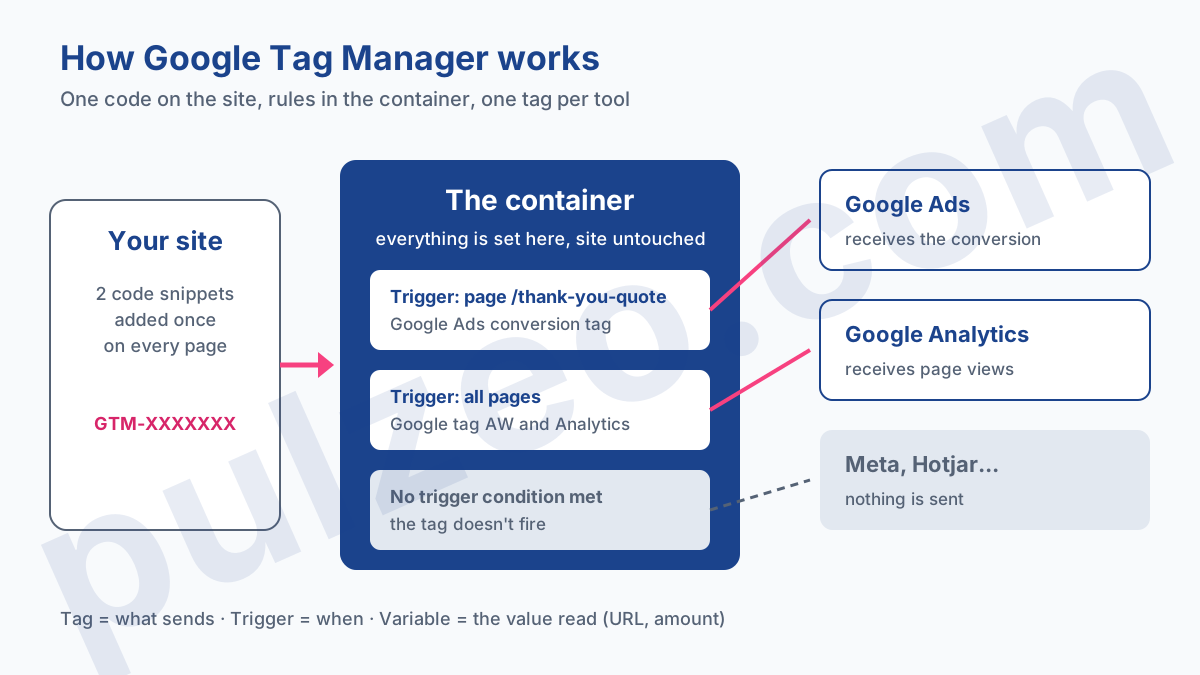
Google Tag Manager works with a single piece of code installed on the site, the container, which then loads the tags you configured in the interface, according to rules you set. The site only knows about the container. Everything else happens on Google's side.
The container, added once to every page
For a website, Tag Manager provides two code snippets. According to Google's installation steps, the first goes as high as possible in the <head> tag, the second right after the opening <body> tag, on every page of the site. WordPress, Shopify or Wix handle it through a plugin or a simple field where you paste the GTM-XXXXXXX ID.
That is the only technical change to the site. The day you add a Meta tag, switch your Google Analytics ID or remove an old heatmap tool, the site itself isn't touched.
There are other container types (iOS, Android, AMP, and a server container for server-side tracking), but the one Google describes as the most common, and the only one most advertisers will ever need, is the web container.
Tags, triggers and variables
Inside the container, everything rests on three building blocks, which Google defines in its glossary:
- a tag is the piece of code supplied by a tool (Google Ads, Google Analytics, Meta), which sends information to that tool;
- a trigger is the rule that says when the tag should fire: on every page view, on the thank-you page, on a button click, on a form submission;
- a variable is a placeholder that stores a value, such as the page URL, a button's text or an order amount, which tags and triggers can read.
A real example: a Google Ads conversion tag, triggered when the page URL contains /thank-you-quote, which reads the estimated quote amount from a variable. Three building blocks, one conversion measured.
What is Google Tag Manager used for in Google Ads?
For a Google Ads account, Tag Manager is first used for one thing: reporting conversions reliably. Without conversions, automated bid strategies such as Maximize conversions or Target CPA bid blind, and you can't tell which keyword makes you money.
In practice it carries three kinds of tags. The Google tag set up with your AW-… ID, loaded on every page, which keeps the ad click identifier and serves as the basis for remarketing. One conversion tag per action measured (quote, call, purchase). And the Google Analytics tag, if you use it, whose conversions can also be imported into Google Ads.
The exact setup, with the triggers to pick and the double counting to avoid, is covered in my article on the conversion tag in GTM. I won't repeat it here.
What interests me is what Tag Manager changes day to day. Want to track a new form? One tag and one trigger, published in ten minutes, with no ticket to the developer and no waiting for the site's next release. On the accounts I take over, that is often why tracking stopped at the first conversion: every addition went through someone who never had the time.
It is also where consent is handled. Each tag carries its consent settings, and Tag Manager takes the choices made in the cookie banner into account to decide how the tag behaves. The topic has its own pitfalls, which I cover in the article on Google's consent mode.
Tag Manager vs Google Analytics: what is the difference?
Tag Manager delivers, Google Analytics measures. Tag Manager decides which tags to load and when, without storing data or producing reports. Google Analytics receives the data sent by its own tag, organizes it and turns it into audience reports.
The confusion comes from the fact that they are often installed on the same day, and that the Google Analytics tag lives in the container. But either can exist without the other. A site can load Google Analytics directly in its code, without Tag Manager. A container can hold only Google Ads and Meta tags, with no trace of Google Analytics.
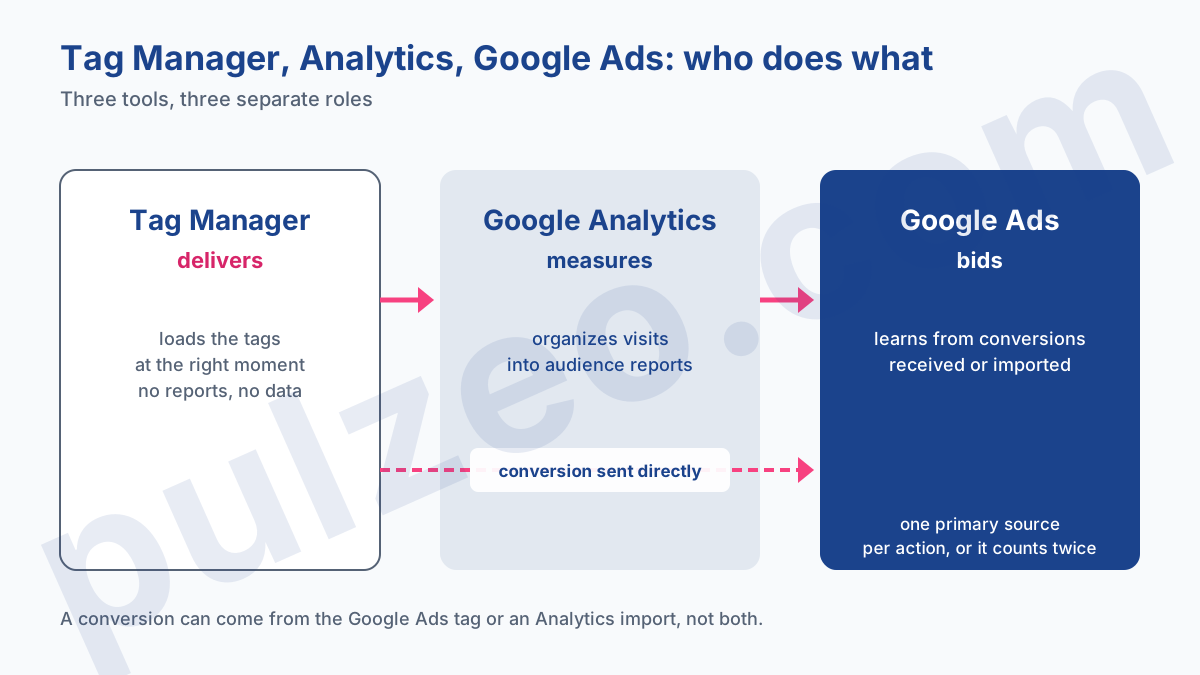
Google Ads, finally, is the third player, and it decides your bids. It learns from the conversions it receives, either from its own tag loaded by Tag Manager, or imported from Google Analytics. If both sources count the same action, you count it twice: pick only one of them as the primary conversion.
Is Google Tag Manager free?
Yes. Google describes it as "a free and easy-to-implement" tool on its product page. There is a paid version, Tag Manager 360, which is part of the Google Marketing Platform suite and targets large organizations.
The difference is about teamwork. The free version offers three workspaces per container (the default one plus two more), the 360 version an unlimited number, according to the help page on workspaces. A workspace is a separate draft, so that two people can edit the container without stepping on each other. For a small business or an agency of a few people, three is plenty.
Tag Manager or the Google tag directly on the site?
The Google tag, gtag.js, can also be pasted directly into the site's code, without going through Tag Manager. For a brochure site that only measures a page-view conversion, that is defensible. One tag, one thank-you page, and nothing will change for a long time.
As soon as there is more than one action to track, I set up Tag Manager without hesitation. A form in a pop-up, a click on the phone number, a cart: these events aren't pages, they need triggers, and hard-coding them means editing the site's code for every change.
Above all, avoid mixing the two. A Google tag hard-coded in the theme, plus the same one in the container, and every conversion fires twice. Before creating a container on an existing site, check what its code already loads.
Google Tag Manager not working: common mistakes
Tag Manager has one flaw: it fails silently. A badly set tag produces no error message on the site, it simply doesn't fire, and it is in Google Ads, weeks later, that you notice a gap.
The first mistake is not publishing. Everything you create stays a draft in the workspace until you click "Submit" and then "Publish". I regularly find containers with perfectly configured tags, never published, and an advertiser convinced their tracking has been running for three months.
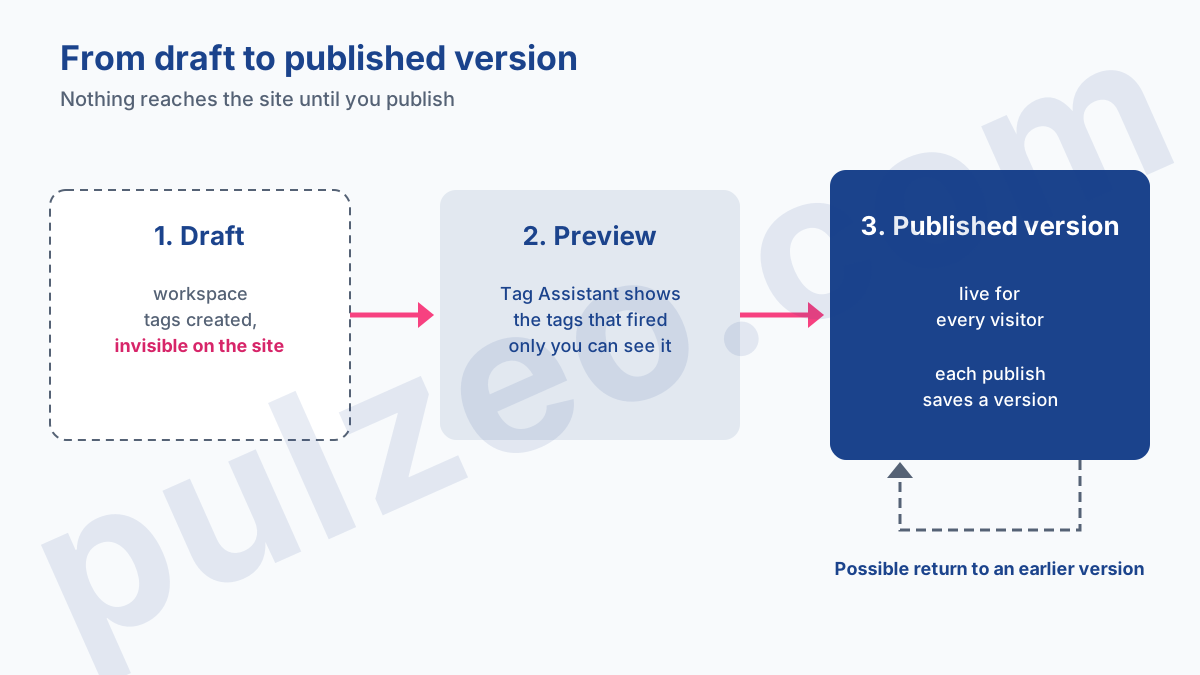
The tool to avoid the rest is Preview mode. It opens your site connected to Tag Assistant, which shows, according to Google's help, which tags fired and in what order, without publishing anything and without your visitors seeing a thing. Fill in the form, click the button, and check whether the expected tag shows up.
The other mistakes I come across most:
- a container installed with the
GTM-ID of another site, copied from an old project; - the snippet present on only some pages, often missing from the checkout or the thank-you page;
- a conversion tag triggered on "All Pages", which counts a conversion on every visit;
- a container created by a former agency on its own account, inaccessible once it leaves.
Pulzeo handles part of this check for you: from your thank-you page's address, it verifies that the container is installed there with the right ID, and that the published version contains the expected conversion tags.
And if a publish breaks something? Each publish saves a version of the container, a snapshot of its configuration, according to the help page on versions. Going back to the previous version takes a minute. It is Tag Manager's best insurance, and the reason I never edit a live container without naming each version.
Tag Manager account ownership: advertiser or agency
The owner should be the advertiser, always. The Tag Manager account belongs to the business, on a Google address it controls, and the agency or freelancer is invited to it. It is the first thing I check when taking over an account, and the most expensive one when it was gotten wrong.
Your site's container should belong to your business, never to whoever manages it for you.
Google recommends a single account per organization, then one container per website or app. The case I see too often: an agency created the account on its own address, the engagement ends, and the advertiser has to rebuild their tracking from scratch, with weeks of conversion data missing for their bidding.
Permissions are granted container by container, on four levels beyond no access:
- Read, to view without changing anything;
- Edit, to change tags, triggers and variables in a workspace;
- Approve, to also create versions, without being able to publish them;
- Publish, to put a version live on the site.
At account level, each person is a User or an Administrator. Keep at least two administrators on the business side, which Google also recommends. A contractor usually only needs Publish on the container concerned, with no administrator role on the account.
How to get started with Google Tag Manager
If you are starting from scratch, the path is short. Create the account on a company Google address, then a web container named after your site. Installing Google Tag Manager then comes down to pasting the two snippets on every page, or the ID into the field your CMS provides.
Publish once, even without a tag, to check in Preview mode that the container loads. Then lay the foundations in this order: the Google tag with your AW-… ID on every page, the Google Analytics tag if you use it, and finally one conversion tag per action that truly matters to your business.
This is exactly the part Pulzeo automates. You connect your container, Pulzeo adds the foundation tags to it, then creates in one go the conversion action in Google Ads and its tag in Tag Manager, with its trigger: form submitted, page reached or button clicked. Nothing is published without your approval, and you keep control of your container. The details are on the page about conversion tracking with Pulzeo.
Once these basics are in place, Google Tag Manager becomes what it should be: a tool you open when you want to measure something new, and forget the rest of the time.
Common questions
What is the difference between Google Tag Manager and Tag Manager 360?
Tag Manager 360 is the paid version, part of the Google Marketing Platform suite. It mainly adds teamwork features, such as unlimited workspaces per container, versus three in the free version. The free version is enough for a small business and for an agency alike.
Does Google Tag Manager replace Google Analytics?
No. Tag Manager measures nothing and shows no reports: it loads tags on your site at the right moment. Google Analytics receives the data from its own tag and turns it into audience reports. The two work together, and the Google Analytics tag is often one of the first ones added to a container.
How many Google Tag Manager containers should you create?
One per website or app, inside a single account per company. Google states that you don't need a container for every page: the same container, installed on every page of the site, is enough. For an agency, one container per client is the right rule, with each client owning their own account.
Do you need to know how to code to use Google Tag Manager?
Not for the essentials. You paste two code snippets once, which most CMSs handle through a field or a plugin. After that, Google Ads and Google Analytics tags are set up through forms. Code only comes back for finer needs, such as sending an order value from the confirmation page.