
Google Ads conversion tracking with Google Tag Manager

You open Google Tag Manager, create your Google Ads Conversion Tracking tag, pick a trigger, hit publish. The counter moves in Google Ads. Done.
Except some of your conversions will never arrive, and nobody will tell you. No alert, no warning in the interface, just an undercount and automated bidding learning from data full of holes.
The cause is almost always the same on the containers I take over: the conversion tag exists, but nothing guarantees the ad click ID is still around when the conversion happens. The piece that keeps it there measures nothing and shows up in no report, yet it's what decides whether your conversions get attributed.
The two tags in a container that works
A container set up properly for Google Ads rests on two tags, and only one of the two gets explained in the tutorials:
- the Google tag configured with your
AW-…ID, placed on every page, which captures click IDs and lays the groundwork for remarketing; - the Google Ads Conversion Tracking tag, one per conversion action you measure, fired on the event you want to measure.
The second is the one everybody creates. The first is the one people forget, because it produces no visible number and nobody quite understands what it's for.
If you also measure your traffic, the Google tag holds your G-… ID for Google Analytics as well. It's the same tag with one more destination: the Google tag replaced the old GA4 Configuration tag.
Why the Google tag has to load everywhere
It solves a memory problem. When someone clicks your ad, Google adds a click ID to your landing page URL: the gclid, or its gbraid and wbraid variants on iOS journeys.
That ID is the only link between the paid click and whatever comes next. But it lives in the URL, so it vanishes with the first click to another page, the first shared link, the first return two days later through a bookmark.
That's exactly what conversion linking prevents, and Google spells it out plainly.
"The conversion linker tag automatically detects the ad click information in your landing page URLs, and stores this information in first-party cookies and browser local storage on your domain […]."
Once the ID is tucked away in a first-party cookie, it survives browsing, the checkout funnel, the return visit the next day. The conversion that comes in three days after the click finds its way back to its source.
Without that mechanism, the conversion is attributed to no campaign at all. Your reported cost per acquisition then climbs even though nothing changed in the account, and Smart Bidding optimizes on a truncated signal.
Here's the point most tutorials miss, and it has changed recently. Historically, this job fell to a dedicated tag, the Conversion Linker, which you had to add by hand. It's no longer mandatory: Google states on that same page that "if a container loads a Google tag on every page, it does not also need a conversion linker tag." The condition really is "on every page".
So the only rule that matters is this: make sure your Google tag fires everywhere, including on your ads' landing pages. If you can't guarantee that, for example on a site where the container only sits on some page templates, add the Conversion Linker as a safety net. It doesn't get in the way of anything.
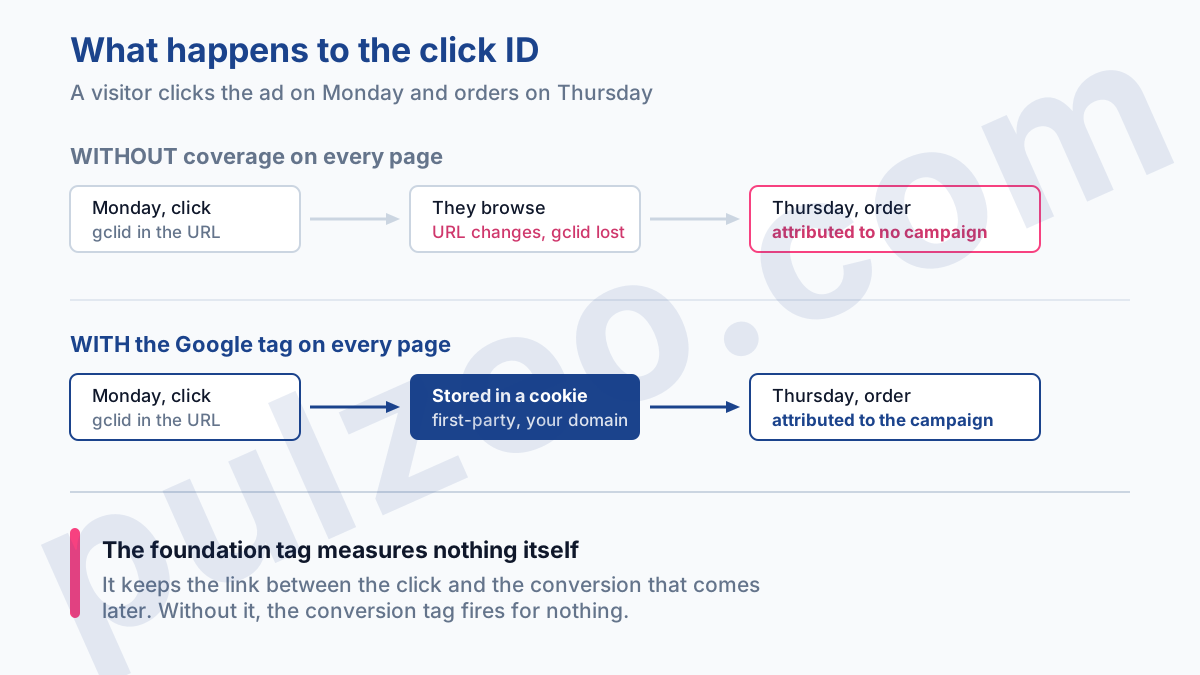
Remember the coverage test: the tag has to fire on every page that can receive an ad click, not just the ones where the conversion happens. The "Initialization - All Pages" trigger does the job, and it's the only place in this article where you target the whole site.
Do you still need a separate remarketing tag?
In most cases, no, and it's a second source of confusion, because the method changed and half the tutorials online still teach the old one.
You used to need two separate things: a Google Ads Remarketing tag to build audiences, and a conversion tag to measure. Today, the Google tag you've just set up already covers both.
If your container still holds a standard remarketing tag on top of it, in most cases it's doing the same job twice. Two exceptions to know before you delete it: dynamic remarketing and tag-based remarketing lists still call for a tag of their own, and Google still documents both.
Creating the conversion tag, in practice
On to the one you came here for. You create it in two steps, and the second is where the damage happens.
Get the conversion ID and label
In Google Ads, open Goals, then Conversions, click the conversion action in question, and in its tag setup instructions explicitly choose "Use Google Tag Manager". That panel gives you both values already in the right format: a Conversion ID and a Conversion label.
The ID is the same for the whole account; the label changes with each action. Always go through that tab rather than copying the ID out of a code snippet: that's where typos creep in, and a tag filled in wrong gets created without a word of protest.
Create a Constant variable for that ID rather than retyping it into every tag. The day you switch Google Ads accounts, you change one value instead of seven.
Choose the right trigger
This is where most counting gaps come from. The question to ask is simple: which specific event proves the conversion happened?
For a genuine thank-you page, one you can only reach after the order or the form goes through, a Page View trigger on that URL works. For a form that submits without loading a new page, you need a custom event pushed to the dataLayer at the moment of successful submission, not on the button click.
The classic trap fits in one sentence: a page view trigger on a page people can reload, bookmark, or reach without converting counts a conversion on every visit. The counter climbs, the conversion rate looks excellent, and your automated bidding chases an imaginary goal.
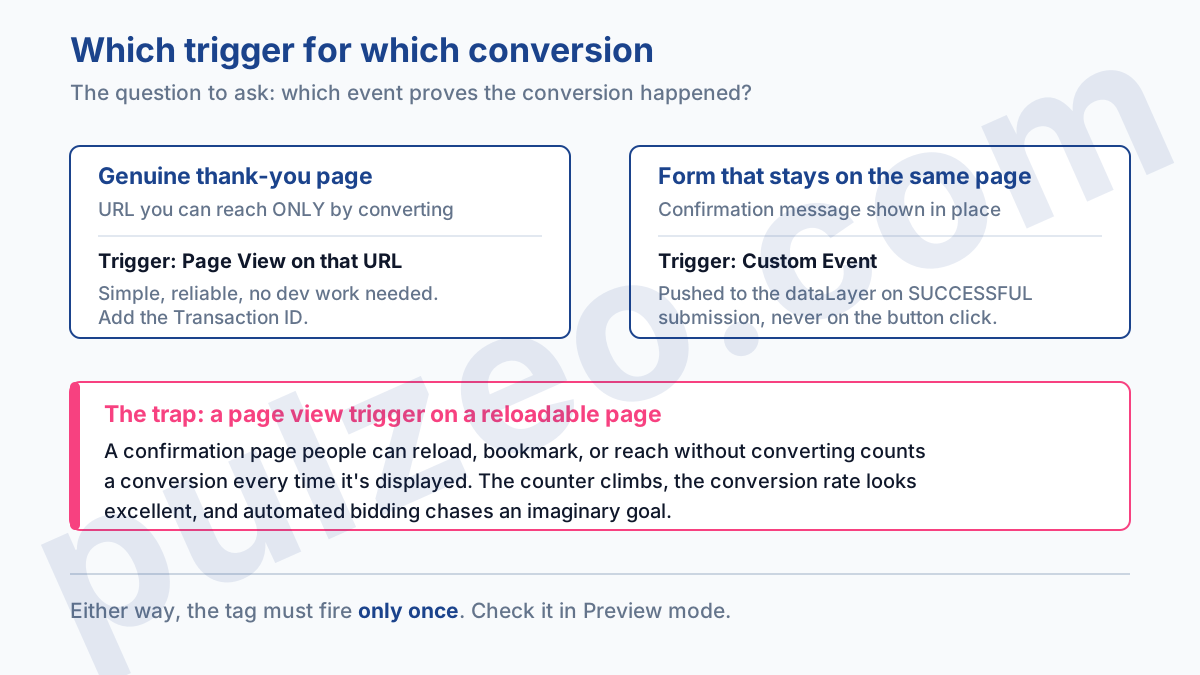
This kind of setting produces exactly the gaps I describe in the article on the six settings that skew conversion tracking, gaps that stay invisible until you cross-check against real orders.
Stop an order from being counted twice
Even with the right trigger, one case still slips through: the customer who reloads the confirmation page, or comes back to it from their browser history. Every time the page loads, the conversion fires again, and you book the same sale several times in your stats.
The fix fits in one field. The Google Ads Conversion Tracking tag accepts a Transaction ID, which you feed with the order number pushed to the dataLayer. When Google receives the same ID twice, it counts only one conversion.
On an e-commerce site, fill it in every time, just like the order value, which should also come from the dataLayer rather than a fixed value hard-coded in the tag. A fixed-value conversion rules out any ROAS-based bidding, since every sale looks the same to the algorithm.
On a contact form, this ID matters less, but a submission number generated server-side does the same job if your leads reload the thank-you page.
How do you check that a conversion tag is firing?
Never publish a conversion tag without having seen it fire. Tag Manager's Preview mode opens your site in a session connected to the container and shows, event by event, which tags fired and which ones stayed silent.
Three checks are enough, in this order. When you arrive on a landing page, the tag that stores the click ID must appear among the tags that fired. As you browse the site, the Google tag must fire on every page. And at the exact moment of the conversion, the conversion tag must fire once, not twice.
That last point deserves emphasis: a tag that fires twice on the same event doubles your conversions, and nothing in Google Ads flags it.
Round it off with the Tag Assistant extension on the real landing page, arriving from a real ad if you can. It's the only way to check that the gclid is actually in the URL and actually captured.
This check has to be redone after every site redesign, and that's exactly when it gets skipped most often. Pulzeo tests your container's setup and tells you what has stopped firing, without you having to reopen Preview mode by hand.
How to check the conversion in Google Ads
A tag firing in Preview mode doesn't yet prove Google Ads is receiving anything. The confirmation is in the ad account itself, and it's the step almost everybody skips.
Open Goals, then Conversions, and read the status column for your conversion actions. Google is rolling out new labels gradually, so you'll see one set or the other depending on your account, but three situations should stop you either way: an "Unverified" action, a "Tag inactive" status, or a "Needs attention" flag. Hovering over each one offers a Troubleshoot link.
Two labels regularly get misread, and Google gives their exact definition. "No recent conversions", which some accounts now show as "Awaiting conversions", means the tag is seen but nothing has been recorded for seven days: normal on a rare action, alarming on your main form. "Tag inactive" is more serious: Google no longer sees your tag at all.
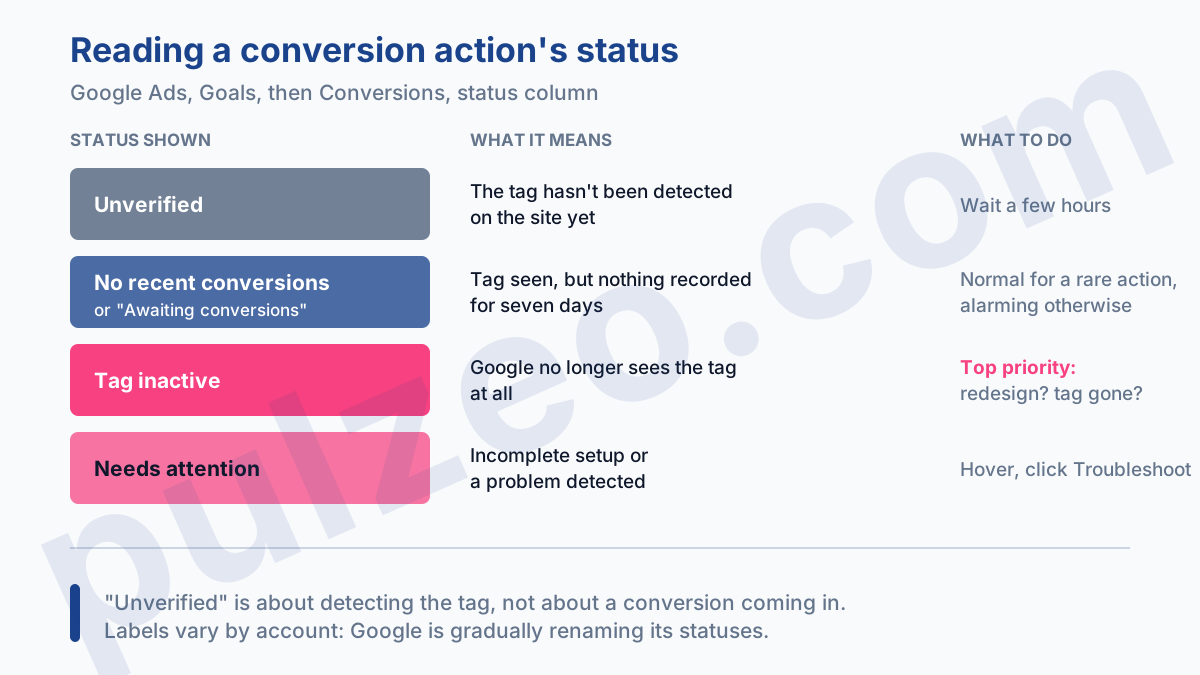
Mind what "Unverified" means: it's about detecting the tag, not about a conversion arriving, and it clears within a few hours. Once verified, an action actually switches to "No recent conversions" before your first real conversion even comes in.
Finally, launch Tag Assistant from Google Ads rather than from the extension alone. Built into the account, it validates your actions on the live site and catches the cases where the tag fires in preview but not in production.
Consent and tag firing
A perfectly built container is useless if your cookie banner blocks your tags. Google's consent mode, in version 2, passes three signals that govern ad measurement: ad_storage, ad_user_data, and ad_personalization.
Until those signals are wired correctly between your consent management platform and Tag Manager, some of your conversions go unmeasured, and Google estimates them through modeling. This isn't just a legal footnote: it decides whether your tags run at all.
It's a project in its own right, with its own traps, and it deserves to be handled on its own rather than skimmed in three lines here.
Turning on enhanced conversions
One recent change is worth knowing before you rebuild a container. Enhanced conversions sends Google hashed customer data, an email address for instance, to tie back conversions that cookies alone can no longer attribute.
You used to have to pick an implementation method. Since April 2026, user-provided data is accepted from website tags, Data Manager, and API connections at the same time, with no need to choose between the three, and existing setups were moved automatically to the new single on/off setting.
In practice, if you're building your container today, turn on enhanced conversions, let your Google tag collect user-provided data, and declare the fields you have. The attribution gain is real on long journeys, and the technical side has just gotten simpler.
Why conversion tracking needs redoing regularly
What I've just described takes an hour on a simple site. The problem isn't the first setup, it's everything after it: the site redesign that breaks the dataLayer six months later, the new conversion action an intern adds without checking that the click ID gets stored, the container nobody dares touch anymore because nobody remembers what's in it.
That's precisely the work Pulzeo takes on: it connects to your container, creates the conversion tag and its trigger for you, installs the missing foundation tags, and tests the setup before you publish.
Remember the order at least, even if you do everything by hand. The Google tag on every page first, the conversion tag on its event next, Preview mode before publishing, the conversion action's status checked in Google Ads the next day. A conversion tag sitting in a container that doesn't cover your landing pages only measures part of the picture.
Common questions
Which tags does a Google Tag Manager container need for Google Ads?
Two are enough. The Google tag, set up with your AW ID and fired on every page, which captures click IDs and lays the groundwork for remarketing. Then the Google Ads Conversion Tracking tag, one per action, fired on the event you want to measure. The Conversion Linker tag, mandatory for years, no longer is once a Google tag loads on every page: keep it if you can't guarantee that coverage.
Is the Conversion Linker tag still necessary?
Not in every case anymore. It detects the click information in your landing page URLs (gclid, gbraid, wbraid) and stores it in first-party cookies on your domain. Google does specify, however, that a container loading a Google tag on every page doesn't also need one. It remains useful as a safety net if your container isn't present on every landing page.
Which trigger should you use for a Google Ads conversion tag?
Never "All Pages". If the conversion is a page view, like a genuine order thank-you page, trigger on a view of that one URL. For a form, prefer a custom event pushed to the dataLayer on successful submission. A page view trigger on a page people can reach without converting, or reload, produces double counting that nothing in the interface flags.
Is a separate Google Ads remarketing tag still needed?
In most cases, no. The Google tag set up with your AW ID enables remarketing and serves as the base for conversion tracking, all in a single tag. Two exceptions remain: dynamic remarketing and tag-based remarketing lists still call for a tag of their own, and Google still documents both.