
Set up your conversions and track what actually works
Create your conversion actions without a developer and without touching code, then track what each campaign really brings in.
Set up tracking without touching code
You connect your Google Tag Manager container and Pulzeo adds the three tracking tags to it. Then you create whatever conversion action you need, with its trigger: a form submitted, a page visited, a button clicked. No developer to book, no poking around Google Ads settings.
- The tags carry Pulzeo’s name inside your container.
- An existing tag is updated, never duplicated.
- Nothing is published until you say so.
Real numbers, not only the ones Google Ads reports
Google Ads counts its own way, and its cost per acquisition is almost always kinder than yours. Compare what it reports with what your business actually books, and you get a number you can make decisions on.
- Your real acquisition cost, not the platform’s.
- Campaign by campaign, over the period you choose.
What conversion tracking covers
Google Tag Manager setup
In a few clicks, Pulzeo configures your Google Tag Manager and installs your tracking tags, without a developer.
Creating a conversion
Create the conversion action you need, a form or a sale, and it goes straight into your Google Tag Manager and into Google Ads.
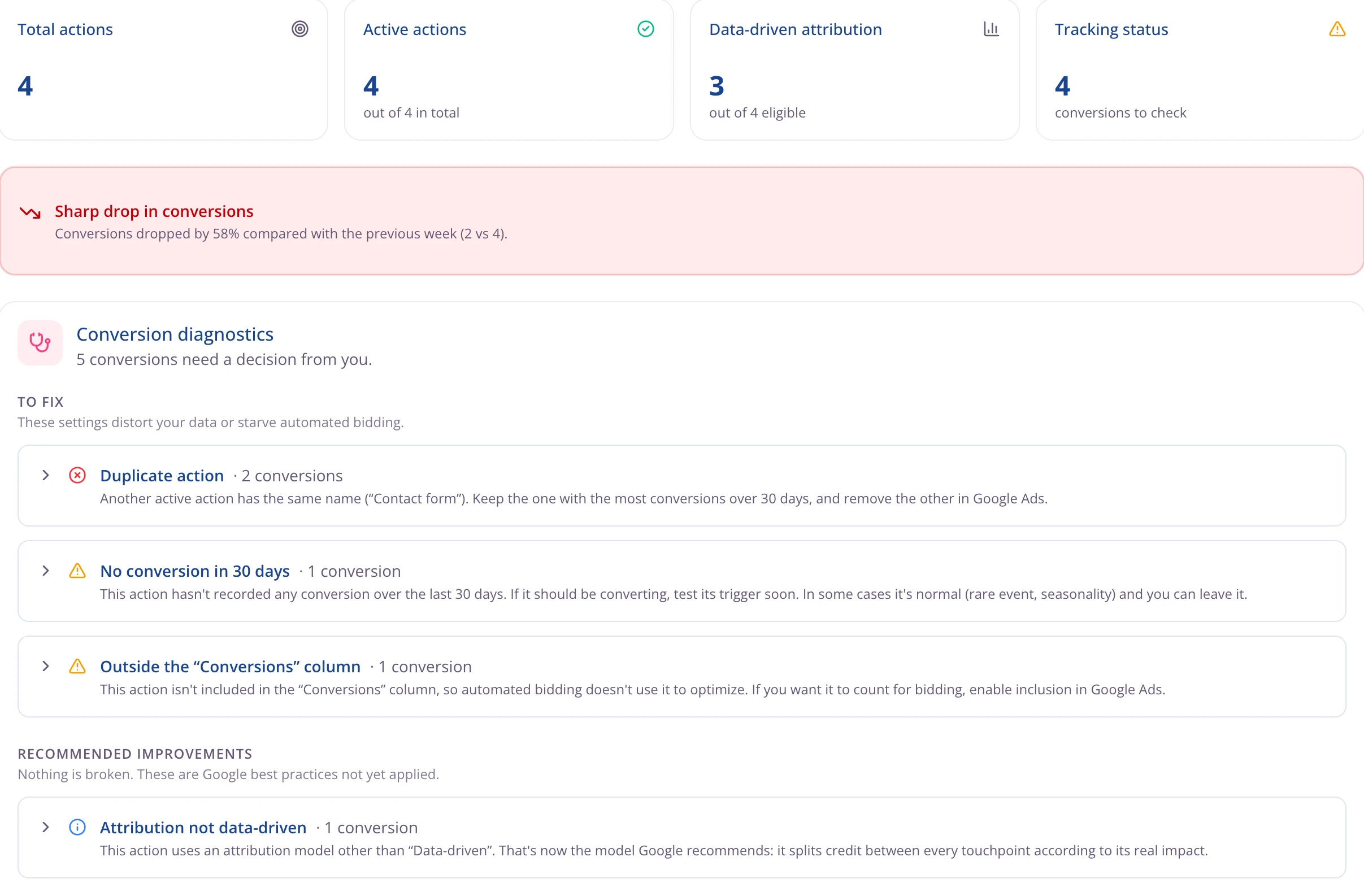
A check-up of your tracking
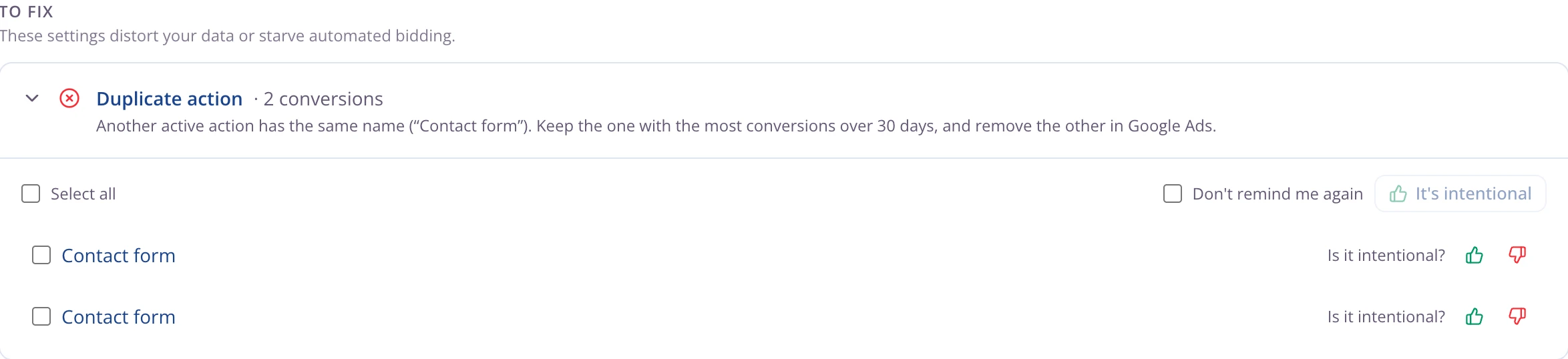
Inactive conversions, duplicates, wrong counting settings, inconsistent attribution: whatever skews your numbers is found and explained, with the fix.
A drop caught immediately
If Pulzeo sees conversions fall off sharply, you hear about it right away, with the numbers. Broken tracking usually shows up exactly like that.
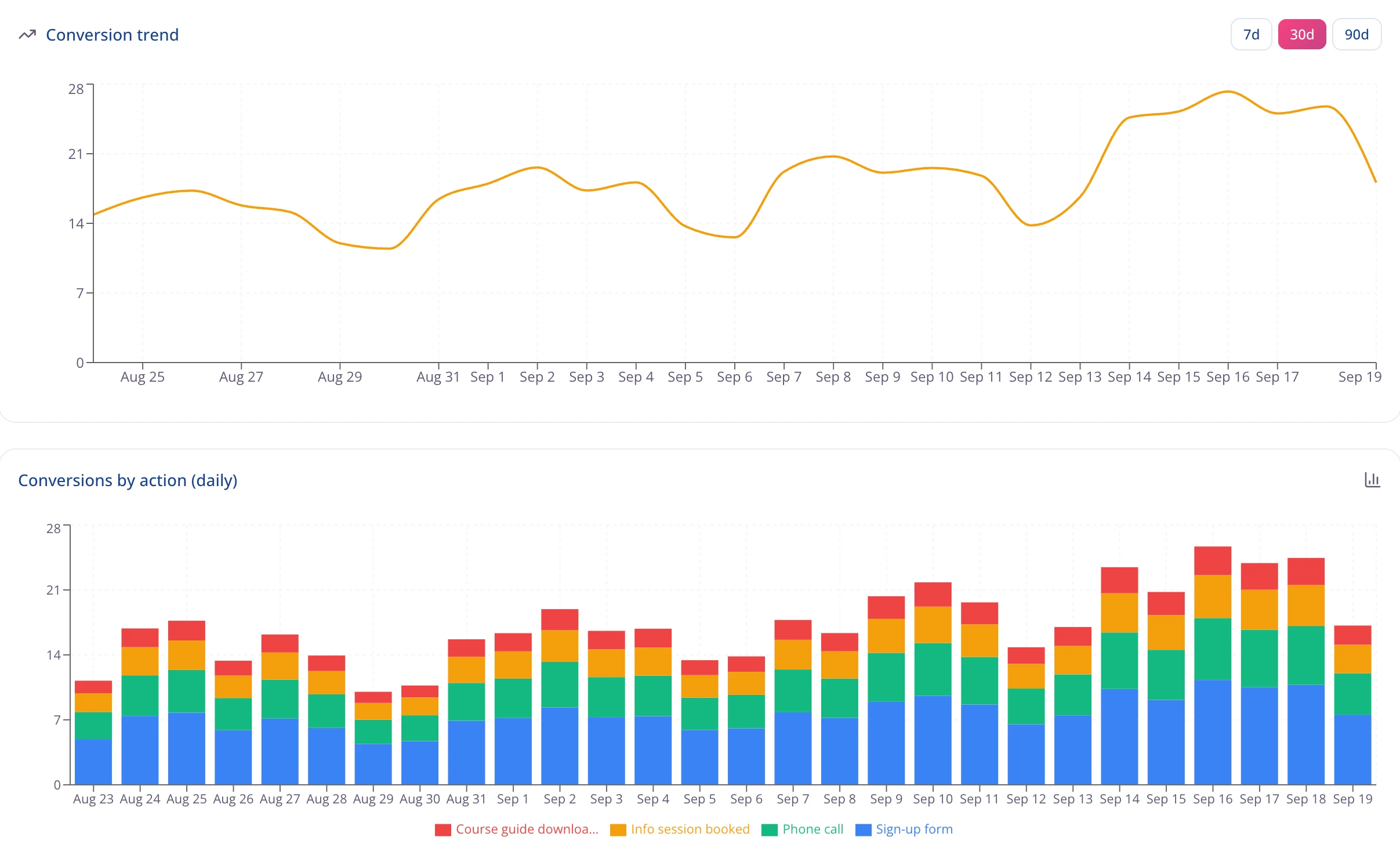
Conversions by type
Purchases, forms, calls, bookings, sign-ups: each tracked separately, because each one deserves to be counted its own way.
What each campaign brings in
Conversions are attributed campaign by campaign over the period you’re looking at. You see what performs at a glance.
14-day free trial
See what actually pays
Set up conversion tracking without writing a line of code, and finally see your real numbers. No credit card required. Cancel anytime.

Bad tracking poisons every decision after it
If your tracking counts the same conversion twice, or counts visits instead of sales, everything built on top is built on fiction: budget goes to the wrong campaign and bidding chases a target that doesn’t exist.
- The check-up runs continuously, with nothing for you to start.
- Every problem is explained, with what it actually distorts.
Every type of conversion in its place
An average cost per conversion means nothing when it mixes a $4 newsletter sign-up with a $34 quote request. Splitting the types shows which one drives your revenue, and which one inflates volume without paying off.
- Form, purchase, appointment, phone call, sign-up.
- Every conversion carries its volume and its cost.
Not every conversion should steer the bidding
Some of your conversions have no business sitting in the column that drives bids. Some exist to measure, others to optimize. Pulzeo flags the ones whose setting doesn’t match what you want them to do.
Your conversions, day by day and by type
The line chart tells you whether volume is steady. The bars tell you which type dominates over the month. Both cover the period you choose.
Questions about conversion tracking
Do I need a developer to set up tracking?
No. Pulzeo creates the tags in your Google Tag Manager container and the conversion action on the Google Ads side. You never write anything in your site’s code, and nothing is published without your approval.
What if I don’t have a Google Tag Manager account?
It’s free, and Pulzeo walks you through creating one in a few minutes. It’s the route Google recommends for tracking that doesn’t need a code change every time you update your site.
What exactly does Pulzeo put in my container?
Three tags shared by the whole site: the Conversion Linker, which keeps the link between the ad click and the conversion, the Google Ads tag and the Google Analytics tag. Then, for every conversion you create, Pulzeo creates a tag and its trigger. Everything carries Pulzeo’s name, so you can see at a glance what came from us. An existing tag is updated instead of duplicated.
Why the Conversion Linker tag?
Because without it, some of your sales are never traced back to the campaign that produced them: the link breaks as soon as the visitor moves from one domain to another. That happens, for instance, when your checkout or sign-up page lives outside your site. It’s the tag that’s missing most often, and you can’t tell it’s missing: conversions are simply undercounted.
Why do my numbers differ from the ones in Google Ads?
Because Google Ads counts its own way: multi-day attribution windows, conversions per interaction, attribution models. Comparing with what your business actually books gives you the real acquisition cost, the one worth basing decisions on.
What does the tracking check-up do?
It reviews your conversions and flags what deserves attention: an inactive conversion, a counting setting that doesn’t fit the action, a duplicate, an attribution window that contradicts the rest. Every problem comes with what to change.
Does Pulzeo change my existing conversions?
Not without your approval. The check-up flags and explains, nothing more. Fixes remain your call and always require confirmation, as everywhere else in Pulzeo.

Your Google Ads copilot is ready.
Zeo will analyze your accounts, quickly spot the optimizations that matter and prepare your client reports.
- 14-day free trial
- No credit card required
- Cancel in one click