How to make bulk changes in Google Ads Editor

You've got three hundred keywords to switch to exact match, forty ads to update and a label to change across twelve campaigns. In the web interface, that's an afternoon. In Google Ads Editor, it's twenty minutes. The app is free, it runs on your computer, and it does in a single selection what the interface makes you do screen by screen.
Everyone will tell you that much. What almost nobody will tell you is that Editor silently deletes the content of fields it can't read, and that it can bring back items you'd removed online while you were working offline. Both mechanisms are documented by Google. Here they are, and how to avoid them.
What Google Ads Editor is for
It's a free desktop app that downloads a full copy of your accounts to your computer. You edit that copy offline, then send the changes back to Google Ads in one go. The web interface, by contrast, writes straight to the account with every click.
That difference explains everything else. Since the whole account lives locally, searching thirty thousand keywords is instant, and a change across a thousand rows happens in one operation instead of a thousand round trips to the server.
Google sums up the promise in a list of capabilities, and it's an honest one. You can "use bulk editing tools", search and replace text, copy or move items between ad groups, undo and redo multiple changes, and manage multiple accounts at the same time.
That last point is the most underrated. Two accounts open side by side, you copy an ad group from one to the other, and you're done. In the web interface, you have to export, rework the file, reimport it, and then hope all the columns line up.
Editing multiple campaigns at once
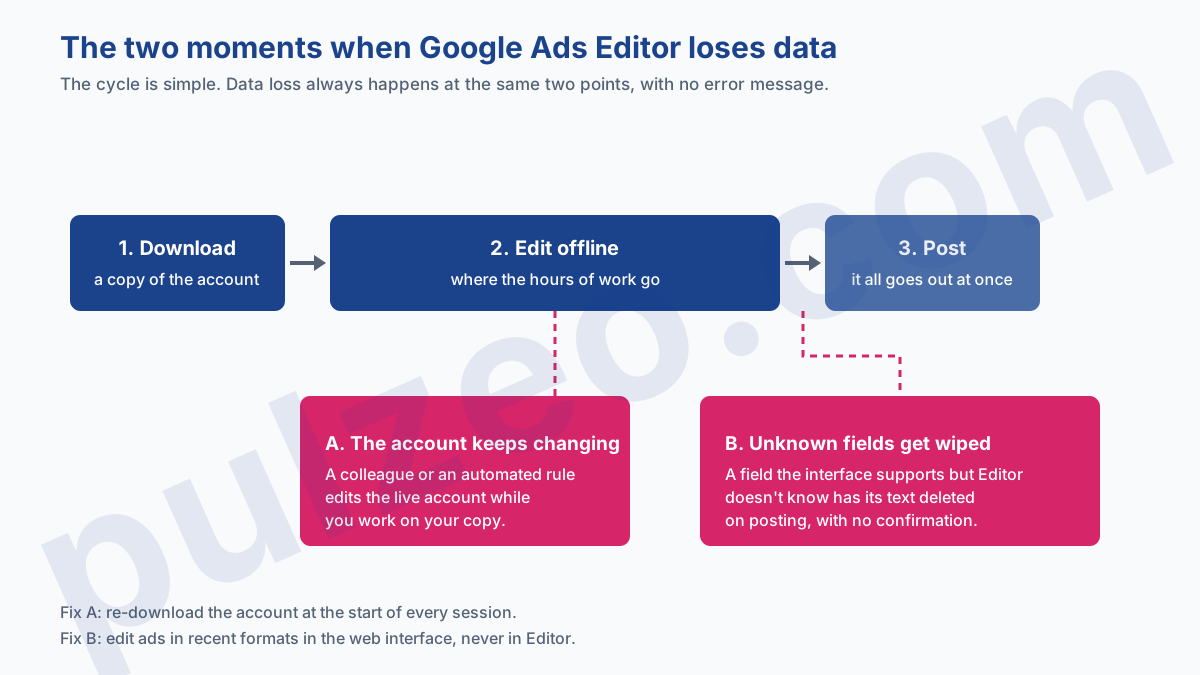
The time savings aren't uniform. Google Ads Editor cuts your time by a factor of ten on one specific kind of task, and leaves everything else exactly where it was. Knowing which tasks those are spares you from opening the app for nothing.
Where the time savings are real
They're all the ones that apply the same change to a lot of rows, and they all look alike:
- adding a negative keyword list to fifteen campaigns in one go
- switching a hundred or so keywords from one match type to another
- replacing a final URL in every ad in an account
- renaming ad groups to follow a naming convention
Bulk editing works for duplication too. Rebuilding an existing campaign for a new location takes a few minutes: you copy, you paste, you change what needs changing.
And there's one use the interface simply doesn't allow: building out an entire account offline, exporting it to a file, and sending it to someone for review before a single row goes live. Google spells it out in black and white: "export and import files to share proposals." For an agency that gets its account structures signed off by a client, nothing else comes close.
Where Editor doesn't save you any time
Anything that gets decided case by case. Making a budget call, choosing a bid strategy, judging whether a search term deserves to be excluded: the action itself takes two seconds in either tool, and the real time goes into the thinking.
So a work session made up of judgment calls will happen entirely in the browser. Editor does show your campaign statistics, but none of the diagnostic tools you actually base a decision on.
The fields Google Ads Editor doesn't support
Here's the trap nobody warns you about, even though it's been written into the official documentation for years.
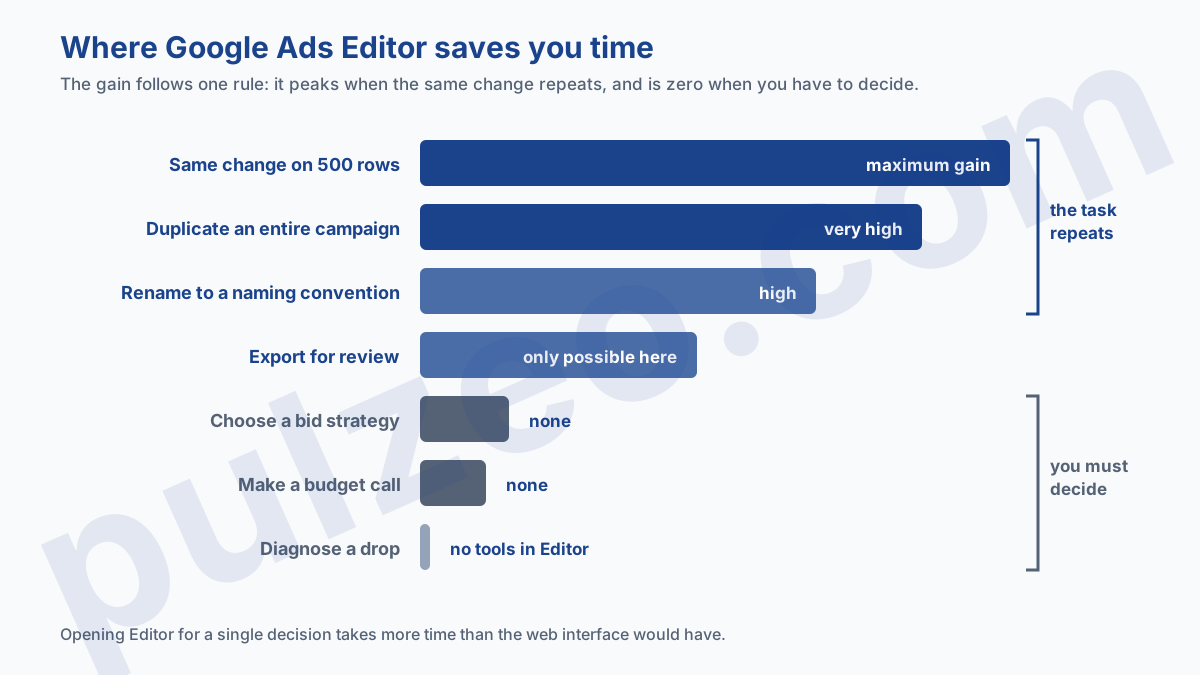
"When editing ads within Google Ads Editor, any field that exists in the Ads UI, but isn't supported in Google Ads Editor will result in the text in the field being stripped upon posting edits from Google Ads Editor."
Read that again, slowly. You open an ad in Editor to fix a typo in a headline. That ad also contains a field Editor doesn't know about, because it comes from a recent format or a feature the interface got before Editor did. You fix your typo, you post, and the content of that other field goes in the trash along with it.
And nothing warns you. The summary of changes Editor shows before you post covers what you changed, and the documentation never mentions any warning about the fields it's about to wipe. You discover the loss later, when you reopen the ad in the interface, if you ever reopen it.
The fix comes down to one rule: as soon as an ad uses a recent format, you edit it in the web interface. That's actually what Google's help center tells you to do, recommending that you make these changes in the Ads UI directly. The rest of the account isn't affected: keywords, bids, structure and budgets can all be edited in Editor with no risk of losing anything.
And if the loss has already happened, there's still a safety net, as long as you use it quickly. Google Ads Change history keeps two years of records, and lets you undo most changes from the last thirty days: the item goes back to its previous state.
Two caveats, which Google states plainly. The undo fails if an associated item has been removed in the meantime, or if another user on the account has already undone the same change on their end. Treat it as a possible recovery, one that mostly depends on you having noticed the disappearance within the month.
Why Editor recommends getting recent changes
The second mechanism comes from the very nature of the tool. You're working on a copy, taken at a given moment. Meanwhile, the live account keeps changing: a colleague edits an ad, a client pauses a campaign, an automated rule changes a bid.
When you post, Editor compares your copy with the live account. If the gap is too big, it refuses and shows a message that Google's help center explains like this: "You might see this error if you're attempting to post an outdated version of your account."
The behavior you need to know about is what comes next. If you then ask Editor to get recent changes, your unposted changes turn into additions for the latest version of the account. In other words, an ad deleted online during your session, which your copy still contains, can be recreated as an addition when you post.
On an account only you touch, it'll never happen. On an account shared between two people, or run by automated rules, it does. The habit that takes thirty seconds and saves you the headache: download the account right before you start, and never pick up a session you opened the day before.
Does Google Ads Editor support Performance Max and Demand Gen?
Yes, and far better than two years ago. Version 2.13 adds the Customer retention goal for Performance Max, the Maps channel and classic display assets for Demand Gen, the AI Max suite for Shopping, and a user attestation field for AI-generated content.
But the lag is structural, and you need to keep it in mind. A new feature lands in the web interface first, then in Editor, one or more versions later. That lag is exactly what creates the unsupported fields covered above: the two tools aren't talking about the same version of the product at the same moment.
The lag extends to the documentation itself, which is worth knowing before you rely on it. The official table of features available in Editor still lists shared budgets as read-only, while another page in the same help center explains how to create and edit them from the app, and has done so since 2020.
The practical takeaway is simple. On the classic campaign types, Search and Shopping, Editor is up to speed and you can do everything there. For everything else, open the release notes for the version you have installed, which are kept up to date, rather than the features table.
Editor carries out decisions, it doesn't make them
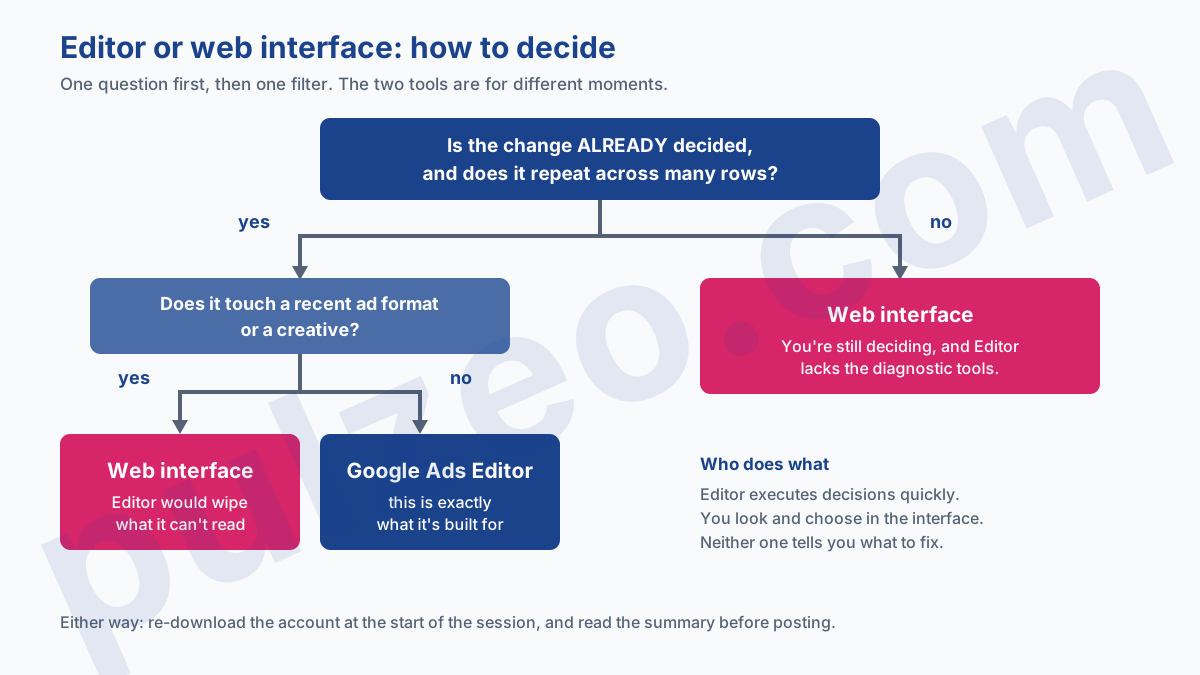
It's the limit that never shows up in any comparison, because you can't see it: Editor will never tell you what to change. It executes what you've decided, quickly and well. It doesn't look at your data, doesn't spot the campaign whose cost per acquisition has been climbing for three weeks, and doesn't flag the search terms draining your budget.
That work is still all yours, and it's the real work. Switching three hundred keywords to exact match takes twenty minutes with Editor; deciding which ones should switch takes half a day of analysis, and that half day is what drives the account's performance.
That's exactly the other half of the job Pulzeo takes on: the action plan reads your accounts, ranks fixes by payoff and effort, and applies some of them directly in Google Ads. The two tools come in at different moments of the same job.
Should you use Editor or the Google Ads interface?
The right answer is both, in separate sessions. Open Editor when you already know what you want to do and there's a lot of it. Stay in the interface when you're still deciding, or when you're touching a recent format.
Three situations call for the web interface, no debate:
- ads that use a recent format, because of the silent deletion of unknown fields
- features too new for the version of Editor you have installed
- anything that's analysis: Auction insights, delivery diagnostics, the Search terms report
For everything else, the app will save you a considerable amount of time, on one condition I'll repeat because it sums everything up: download the account at the start of every session, and look over the summary before you post.
Editor is an excellent pair of hands. It's never been a brain, and Google never claimed it was.
If you're new to the platform, take the time to understand where to start with a campaign before you try to go fast. A tool that applies changes ten times faster also applies a bad decision ten times faster.
Common questions
Is Google Ads Editor free?
Yes, completely. It's an app Google makes available at no cost, for Windows or macOS, and it gives you access to all your accounts with the same sign-in. There's no paid version, and no feature locked behind a subscription.
Do you need an internet connection to use Google Ads Editor?
Only at the start and at the end. You download the account once, then work offline for as long as you like, and reconnect to post your changes. In between, everything happens locally on your computer, which explains how fast the tool is on large accounts.
Can you open several Google Ads accounts at the same time?
Yes, and it's one of the tool's real selling points. In Google's own words, you can manage, edit, and view multiple accounts at the same time, which lets you copy an ad group from one account to another without going through an intermediate file. An agency applying the same fix to ten accounts does it in one session instead of ten.
What happens to an ad field Google Ads Editor doesn't support?
Its content is deleted when you post, with no confirmation and no warning on screen. Google says so in its documentation: the text in an unsupported field is stripped when you post your edits from Editor. The workaround is simple: edit that type of ad directly in the web interface.