
How to fix a Google Merchant Center suspension

With a Google Merchant Center suspension, your whole Shopping storefront goes dark in one go, often overnight, and nothing has changed on your end. And the first reaction is almost always the wrong one: fix two or three things in a rush, then click "Request review" just to see. That's exactly the move that will stretch out your wait.
Here's what really happens when that banner appears in your account, how to read the reason, what to fix, and in what order to request the review so you get the account back without losing another week.
Warning or suspension: what your message says
First of all, work out what state the account is in, because the steps to take aren't the same.
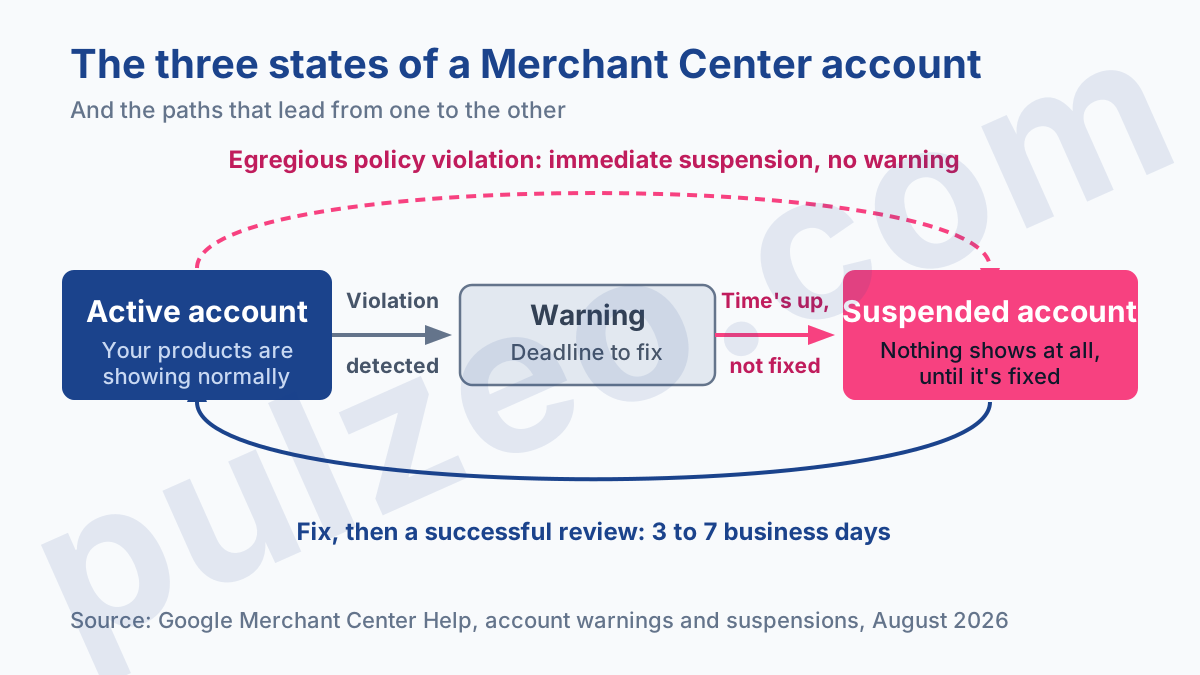
A Merchant Center warning is advance notice. Google sends you an email that describes the problem and gives you a deadline to fix it, with that deadline stated in the message itself. During that window, your products keep showing, but their visibility may already be limited.
It's the easiest time to act, and paradoxically the one everybody ignores. The email lands in an inbox nobody checks, and the problem gets discovered three weeks later, once the ads have stopped.
A suspension, on the other hand, stops everything. Two paths lead there. Either the warning period ran out without the problem being resolved, or Google detected an egregious policy violation, in which case the account is suspended immediately, with no warning sent at all.
The exact reason is waiting for you in the "Needs attention" tab in Merchant Center. Read it in full before you touch anything: everything else depends on it.
Why Google suspends a Merchant Center account
Google's documentation names three reasons, and they fit in a short list:
- a missing return and refund policy on your site;
- not enough contact information to identify you;
- misrepresentation, about yourself or about your products.
On top of these comes not a fourth reason but a procedure: when an egregious policy violation is detected, the suspension is immediate, with no warning sent.
Look at what these three reasons target. Two of them don't mention your products at all (they're about your site), and the third only partly concerns them. That's the first misunderstanding to clear up: people hunt for the error in the feed when it's usually on the store's pages.
What misrepresentation actually covers
In my experience, it's the reason I run into most often on suspended accounts, and the one that causes the most panic, because it sounds like an accusation of fraud. It's nothing of the kind. Google's misrepresentation policy penalizes a lack of transparency, not dishonest intent, and it covers four distinct situations.
First, unacceptable business practices, which cover impersonation, false pretenses and phishing. A site built on a generic theme, with the supplier's visuals and no logo of its own, drifts close to that line without ever meaning to.
Next, misleading offers, which present improbable results as a sure thing, or falsely claim an affiliation with a brand and its endorsement. Then the omission of relevant information, meaning a payment model and fees that aren't clearly shown before the purchase. And finally, promoting products that aren't in stock.
Google is asking you to be identifiable, and to state your terms of sale before you take the payment, not after.
What your site has to show, in black and white
The documentation is precise about what a merchant site must display, and it's a list worth running through once a year, suspension or not:
- up-to-date contact information and a clear description of your business;
- your own branding: your visuals, your logo, your colors;
- any official partnership, clearly explained;
- return and refund policies that are genuinely detailed, not just a page titled "Returns" and left empty;
- the current certifications your business requires.
In my experience, on the accounts I take over after a suspension, the same three culprits turn up every time: a "Contact" page with no physical address or phone number, a return policy copied from a template and never adapted, and shipping costs that only appear on the last screen of the cart. Three one-hour fixes, for ads that have been dark for three weeks.
How long a Merchant Center suspension lasts
A suspension lasts as long as its cause is there. That makes it a different animal from an ordinary penalty: nobody is going to lift it after thirty days on the grounds that you've served your time.
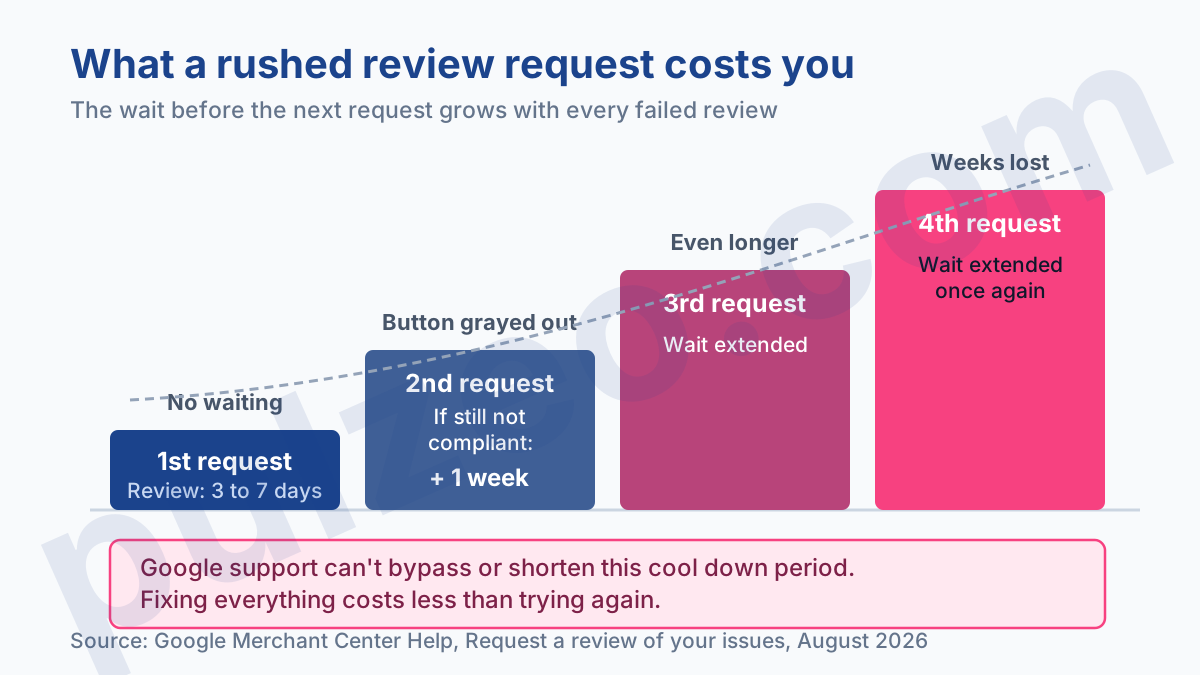
The review, on the other hand, does come with a stated timeline. Once you request a review of your account, Google typically quotes three to seven business days, with an email notification at the end.
And this is where the real cost of a badly handled suspension plays out. If your issues still aren't resolved by the second review request, a one-week cool down period may begin, during which the "Request review" button is grayed out. That period can then be extended after each review that finds the account non-compliant.
In other words, every rushed attempt risks costing you more than the one before, and you can't predict how much. Taking the time to fix everything before you click beats stacking up rejected requests. The documentation also states that Google support can't bypass or shorten this wait, which should be enough to rule out any service promising an express reinstatement.
Does a Merchant Center suspension stop my Google Ads campaigns?
Everything that depends on the feed stops. Google is explicit about Shopping campaigns: when your Shopping ads stop running across every campaign, the first thing its troubleshooting guide has you check in Merchant Center is whether the account is suspended.
By extension, the same logic applies to the product side of Performance Max campaigns, which draws on the same feed. The distinction that matters is this: the suspension hits the Merchant Center account, not your Google Ads account. What stops serving is whatever needs the feed to exist. Your keyword-based Search campaigns don't depend on Merchant Center at all.
A practical consequence few advertisers see coming: a Performance Max campaign doesn't actually stop. It keeps spending its budget on the inventory that doesn't require a product feed, which is rarely the inventory that was driving your sales. Pause it while you sort the problem out, rather than letting it spend on second-rate placements.
It works the other way around too, and it leaves people who find out late going in circles. If the linked Google Ads account is itself suspended, that suspension must be fixed before your Merchant Center account can be reviewed. You can fix your site ten times over; the review won't go through as long as the block on the Google Ads side holds.
In that case, the process starts with an appeal in Google Ads, with a reply expected within five business days. And here again, unlinking the two accounts or removing the suspended one doesn't lift anything.
Finally, one temptation to dismiss straight away: deleting the suspended account to start over with a clean one. Google explicitly advises against deleting a suspended account and opening a new one for the same business, because deleting it won't resolve the suspension. You lose access immediately, your products are disapproved, your free listings disappear along with your ads, and the original problem is still there waiting for you.
What to fix before requesting a review
Here's the order I work in whenever the flagged reason is legitimate: fix everything, check it, and only then request the review. A reason that doesn't apply to you, which calls for a dispute rather than a fix, is covered further down.
Start with the pages that talk about you. Complete contact details that actually reach someone, your legal business name clearly shown, a business description that genuinely says what you sell and who you are. If a reviewer can't figure out who they're dealing with in thirty seconds on your "Contact" page, the rest won't help.
Then move on to your terms of sale. The return policy must be reachable from any product page, give a return window in days, say who pays for return shipping, and describe the refund process. Shipping costs must be shown before checkout, never discovered on the last screen.
Finally, check that the site and the feed agree: a price that differs between the product page and the feed, availability showing "in stock" on a sold-out product, an inconsistent currency. These gaps feed straight into the misrepresentation policy, and they stay invisible until you compare both sides line by line.
Pulzeo monitors that consistency continuously on the accounts it manages, so you don't discover a mismatch the day your ads stop.
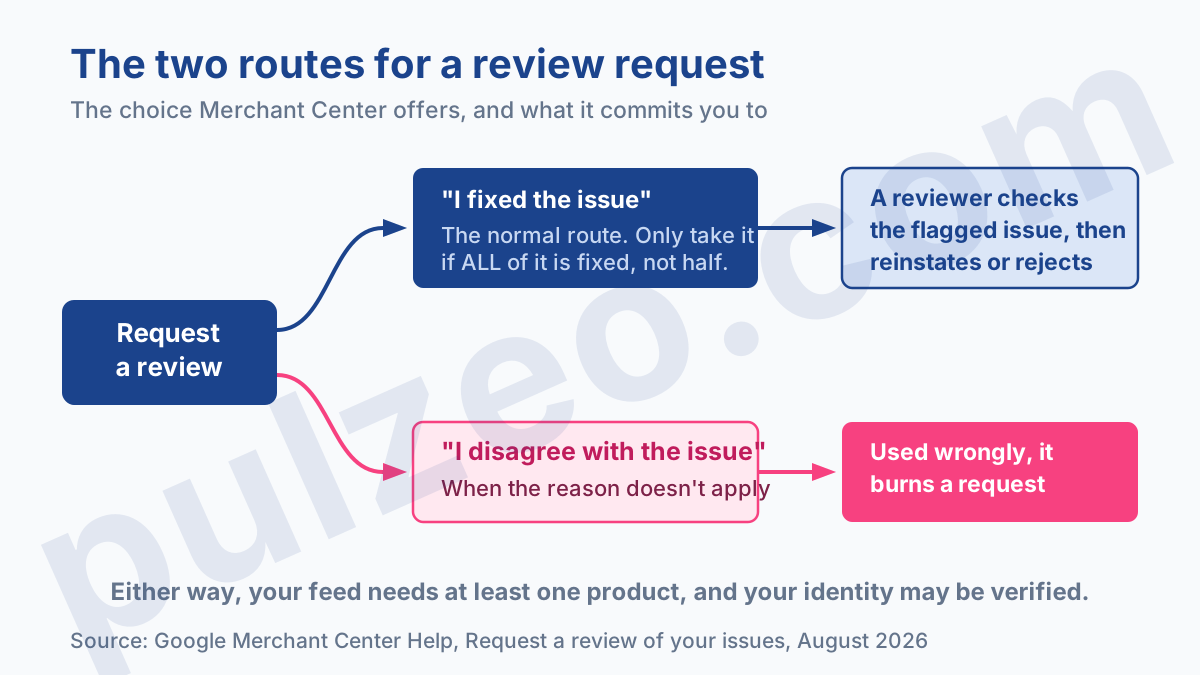
Before you click, two technical conditions have to be met: your feed must contain at least one product, and you must be able to verify your identity if Google asks, with a government-issued ID or your business registration documents. An account whose feed is empty at the time of the request loses a whole cycle.
How to request a review of your account
You make the request from Merchant Center, through the "Review and fix" button on the Home page, or "Fix" in the banner at the top of your account. If you run your store through an app like Shopify's Google & YouTube app, there's an equivalent path in the app's settings.
Google then asks you to choose between two options, and that choice has consequences.
"I fixed the issue" is the normal route. You're stating that the flagged violation no longer exists, and the reviewer comes to check. Only take that route once every point has been dealt with. Taking it with half the work done burns a request for nothing.
"I disagree with the issue" is the dispute route. It makes sense when the reason clearly doesn't apply to your business, which does happen: a counterfeit flag on products you manufacture yourself, for example. But it's useless as a way to buy time, and using it wrongly uses up a review request, with the cool down period that comes with it.
Once the request is sent, there's nothing left to do but wait for the email. Don't overhaul your feed during the review, don't change the site's address, and don't take down the pages you've just fixed.
How to avoid the next suspension
A suspension rarely comes out of nowhere. Apart from egregious cases, where the shutoff comes without notice, there was a warning somewhere, in an unread email or in a tab nobody opens.
So three habits will spare you most of the nasty surprises. First, make sure Merchant Center notifications go to an address someone actually reads, rather than the inbox of the contractor who built the store two years ago.
Next, open the "Needs attention" tab once a week, even when all is well, because warnings show up there before the email does. And reread your policy pages whenever you change your offering, your carrier or your product range: they're what trigger most suspensions.
Beyond that, the heart of the matter is still the feed and its quality, a mechanism I've covered in the article on how Merchant Center works, and one your performance also depends on once your ads are back, as explained in the guide to optimizing a Shopping campaign.
Most merchants know perfectly well how to fix what's flagged to them. What they're missing is someone who looks every day. That's the job Pulzeo does for the accounts it monitors, sounding the alarm when a signal appears rather than after the shutoff, and you'll find the details on the page for ecommerce businesses.
Common questions
What happens if I request several reviews in a row?
You risk penalizing yourself with every attempt. If the issues still aren't resolved by the second request, a one-week cool down period may begin, during which the button can't be used, and that wait can be extended after each review that finds the account non-compliant. A review requested on an account that has genuinely been fixed usually takes three to seven business days: you're better off calmly reworking everything once than requesting several reviews back to back.
What's the difference between a Merchant Center warning and a suspension?
A warning is advance notice: you get an email describing the problem and the deadline for fixing it, and your products' visibility may already be reduced during that period. A suspension stops your products from showing. An account under warning that isn't fixed in time ends up suspended, and in cases of egregious policy violations, Google suspends the account immediately without sending a warning.
Why was my account suspended for misrepresentation?
It's the most misunderstood reason of all, and it isn't accusing you of lying. It points to a site that doesn't show clearly enough who you are and on what terms you sell. Incomplete contact details, missing or vague return policies, fees that only appear on the last screen of the cart, products displayed when they're out of stock: any one of these is enough to trigger the policy.
Can Google support unsuspend my account faster?
No, and it's written in the documentation: support can neither bypass nor shorten the cool down period between two review requests. Support can help you understand the exact reason, which is useful when the message is vague, but nobody at Google will reinstate an account whose site isn't compliant. Be wary of services that promise otherwise.